Posts

Showing posts with the label Validation

Power of Data Validation - 1
Image
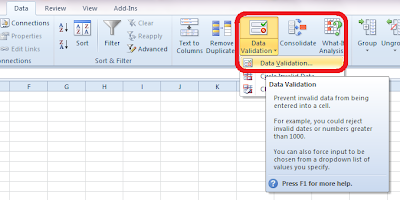
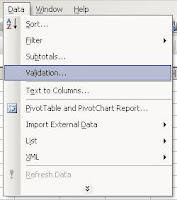
In a series where I would like to present on the power of "Data Validation" option in MS Excel, the first and commonly used function is creation of a drop down list in a cell. We often come across situation where we feel the necessity of having a drop down list in a worksheet where the inputs are predefined and the user gets ready option to populate the cell. The easiest way to create such a dropdown is typing out the list values in the data validation -> list option. Step 1 : Go to Data -> Data Validation -> Data Validation...   Step 2 : Select "List" option in the "Allow" drop down box   Step 3: Write down the desired list values seperating them with comma in "Source" box Result: You get the drop down with the desired options in the intended cell What if you intend to create a long list where the entries are too much? Don't worry, excel offers you solution for this as well. Instead of the "Ste...

Data Validation in Excel

Image
(in continuation of my earlier post: " Custom Validation in Excel ") Today I seriously recognised the power of data validation. I was stuck in a situation wherein I had to create a template wherein the user needs to enter a date, however it the date cannot be a Saturday or a Sunday. After a brief "R&D", I realized using "data validation" was the apt option. Go to Data -> Data Validation In the dialogue box which pops up, choose "Custom" from the drop down under Settings -> Validation Criteria -> Allow In the new field "Formula", just enter the criteria you want to achieve. In my case, I used "=WEEKDAY(A2,2)<6" Then, you may click on the "Error Alert" tab and may put any customized error alert like the picture below: So, now the desired cell is validated and user can only enter a weekday. Another, popular validation that I often use is the "List" wherein one can easily cr...

Custom Validation in Excel

Image
Have you ever tried to create a worksheet where you dont want the user to create duplicate entries...?? Its quite possible in a fairly simple way in MS Excel..! Say you are typing a list of names, where you don't want any name to be repeated once: Step 1: Step 2: Step 3: The formula is a relative formula where it counts the values between the first cell of the column till the current cell to check if the value entered in the current cell is not repeated. Step 4: You may define custom error messages too! Step 5: Copy the first cell to the desired number of cells in the list in order to apply the validation to all the cells in the list. Now try entering few names in the column. Result: So... isnt it easy? Try it out yourself.. and do let me know if this works!!