Posts

Power of Data Validation - 2
Image
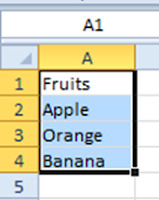
Have you ever wondered if we can have a dynamic drop down list i.e. a drop down using data validation that gets updated automatically with any change in the source of the drop down... I often faced problems having a dynamic drop down list but ultimately I was able to find a solution to my problem. Step 1: Format the source list as a table and name the table (here I've named the table as "Fruits") Step 2: Go to Formulas -> Name Manager and click on New Define any name in the dialog box In the example, I've named it as "Names". Then click on Refers to field and select the table in the excel sheet. The refer to will appear as =TableName[ColumnName] Step 3: Now create the drop down list using data validation and mention the source as the name you defined. In this case "Names" Here you go. The drop down list hence created is dynamic. Any addition or deletion in the source table of the drop down ...
Power of Data Validation - 1

Image
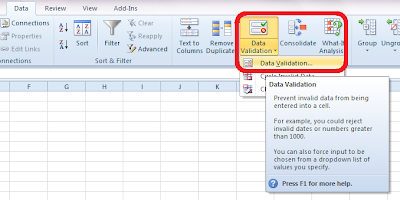
In a series where I would like to present on the power of "Data Validation" option in MS Excel, the first and commonly used function is creation of a drop down list in a cell. We often come across situation where we feel the necessity of having a drop down list in a worksheet where the inputs are predefined and the user gets ready option to populate the cell. The easiest way to create such a dropdown is typing out the list values in the data validation -> list option. Step 1 : Go to Data -> Data Validation -> Data Validation...   Step 2 : Select "List" option in the "Allow" drop down box   Step 3: Write down the desired list values seperating them with comma in "Source" box Result: You get the drop down with the desired options in the intended cell What if you intend to create a long list where the entries are too much? Don't worry, excel offers you solution for this as well. Instead of the "Ste...

Printing Directory Structure in Windows

Image
I had been wondering how can I get a complete stock of the directories as well as contents on my system. In this endeavor Google came to my rescue and directed me to a post where I could find a DOS command to print the directory structure in Windows environment. For Example: If you need to know the contents of the C drive, then go to the command prompt and type  "dir C:\ /s >output.txt" where: dir -  the dos command for displaying the directories C:\ - the location of which you want the directory structure /s - the dos command extension for displaying not only the directories but the files as well >output.txt - refers to the name of output file (in this case output.txt) which will be placed at the root of the folder where the command is getting executed. In case you want the output to your specified location, then include the complete path of the destination after ">". Source:  http://superuser.com/questions/258287/what-is-a-good-...

Data Validation in Excel

Image
(in continuation of my earlier post: " Custom Validation in Excel ") Today I seriously recognised the power of data validation. I was stuck in a situation wherein I had to create a template wherein the user needs to enter a date, however it the date cannot be a Saturday or a Sunday. After a brief "R&D", I realized using "data validation" was the apt option. Go to Data -> Data Validation In the dialogue box which pops up, choose "Custom" from the drop down under Settings -> Validation Criteria -> Allow In the new field "Formula", just enter the criteria you want to achieve. In my case, I used "=WEEKDAY(A2,2)<6" Then, you may click on the "Error Alert" tab and may put any customized error alert like the picture below: So, now the desired cell is validated and user can only enter a weekday. Another, popular validation that I often use is the "List" wherein one can easily cr...

Extending options to Pivot Table

Image
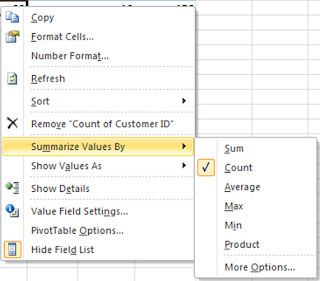
Excel 2007 onwards, playing around with Pivot Table has become even more user friendly. Pivot was seemingly a tool preferred by advanced users of excel but today its a child's play :) Extended options over right click has made this a must use tool for all users who are required to handle a reasonable amount of data. For eg: "Summarize Values By" on right click gives you the option to summarize data by sum or count or average or to choose from all available options. Earlier, one had to be conversant with the options to actually use it. "Show Values As" on right click allows to apply calculations to the data area. Microsoft is making more and more features available for average / less than average users who actually are keen to use the features. Lets all of us make use of this. Note: In case my readers want, I can explore on writing a basic step by step guide on basics of Pivot Table!

IFERROR funtion

Image
We often tend to encounter instances while using formulae performing day to day operations where the formulae results in an error. Often, some basic users prefer manually correcting those errors and so advance users go one step ahead using a combination of "IF" & "ISERROR" functions. Even I'm one of those users who prefer using the "IF" & "ISERROR" combination until I came across the "IFERROR" function. Syntax: IFERROR(value,value_if_error) According to Microsoft, "IFERROR" evaluates  #N/A, #VALUE!, #REF!, #DIV/0!, #NUM!, #NAME?, or #NULL! type of errors. Say: Cell A1 contains a numeric value and Cell A2 contains 0 as value. You intend to perform a simple operation A1 divided by A2 (=A1/A2). In our example, the result would be #DIV/0!. Now, lets redo this simple division using "IFERROR" function. The formula can be written as "=IFERROR(A1/A2,0)" wherein the formula would asses that if the...

Turn Off AutoRecover For Individual Workbooks

Image
In Excel 2007 and 2010, there is a feature called AutoRecover that saves your open workbooks at regular intervals. In the event of a power failure or computer crash or freeze up, this can help you recover your unsaved work. This feature is turned on by default and is hardly noticeable as it happens in the background. However, you may notice AutoRecover saving files, and may even get annoyed by it, if you have one or more large workbooks open, as it could tie you up for 5 to 10 or more seconds. I often have very large workbooks open that contain only reference information (i.e. files that I'm not making changes to) and other workbooks which I don't require to be saved by the AutoRecover feature. To avoid the unnecessary saving of these files, there is an option available to turn off AutoRecover for individual workbooks. Here's how... 1) Click the File tab (2010) or the Office Button (2007); 2) Click Options (2010) or Excel Options (2007); 3) Clic...